
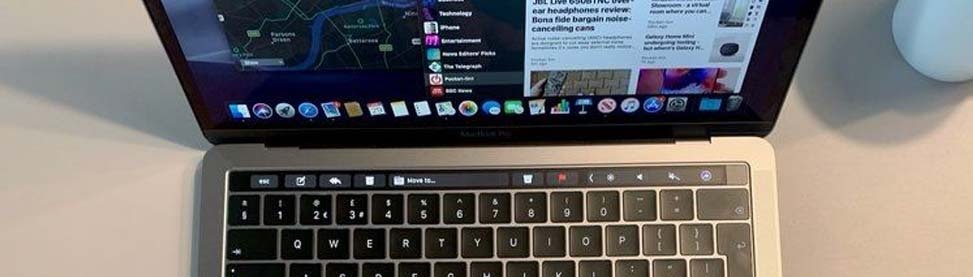
You are in the middle of something important. No warning. No spinning wheel. Your MacBook just shuts off completely.
It is one of the most frustrating things a Mac user can experience. And if it keeps happening, something is genuinely wrong either in the software or in the hardware itself.
This guide covers the most common causes, what you can try at home, and when it is time to bring it to a professional. CellPhones4Sure provides MacBook repair in Plano and MacBook repair in Richardson with same-day service on most issues.
Common Reasons Your MacBook Is Shutting Down
- Outdated or corrupted macOS
- Overheating from dust buildup or a failing fan
- Weak or damaged battery
- Malware or harmful background software
- Faulty external device causing a conflict
- Internal hardware component failure
Understanding which category your problem falls into helps you choose the right fix.
Fix 1: Restart Your MacBook the Right Way
The pain point: Your Mac shut down mid-task and now behaves strangely after turning back on.
A proper restart clears temporary errors stored in system memory that a normal shutdown sometimes misses.
- Press Control + Option + Esc to force-close any frozen apps first
- Go to the Apple menu and select Restart, do not just press the power button
- After it boots, check if the shutdowns continue
If this is a one-time fix, the issue was a temporary software error. If shutdowns return, move to the next steps.
Fix 2: Reset the SMC
The pain point: Your Mac shuts down even with battery charge remaining, or the fans behave strangely.
The SMC (System Management Controller) controls your Mac’s power, battery, cooling fans, and thermal management. When it develops a glitch, random shutdowns are one of the most common results.
For MacBooks with a non-removable battery (most modern models):
- Shut down completely
- Hold Shift + Control + Option + Power button for 10 seconds
- Release all keys and turn the Mac back on normally
For Apple Silicon Macs (M1, M2, M3):
- An SMC reset is not required simply shut down, wait 30 seconds, and restart
This fix resolves a significant number of shutdown issues before any hardware replacement is needed.
Fix 3: Check for Overheating
The pain point: Your Mac gets very hot, the fan runs loudly, and then it shuts off especially during demanding tasks.
Overheating triggers an automatic shutdown to protect internal components. It is a safety mechanism, not a flaw. But the underlying cause still needs to be addressed.
Signs of overheating:
- Fan running at high speed during light tasks like browsing
- Hot surface near the vents
- Sluggish performance in the minutes before shutdown
What to try at home:
- Never use your Mac on a bed, pillow, or couch these block the vents completely
- Use it on a hard, flat surface to allow airflow underneath
- Close unused tabs and background apps to reduce processor load
If overheating happens even during light tasks on a flat surface, the internal fans or vents likely have dust buildup that needs professional cleaning. This is closely related to situations where your MacBook Air keeps restarting the root cause is often the same.
Fix 4: Update or Reinstall macOS
The pain point: Shutdowns started after a recent update or your macOS version has not been updated in months.
An outdated or partially corrupted macOS installation causes system instability that leads directly to unexpected shutdowns.
- Click the Apple menu → System Settings → General → Software Update
- Install any available updates
- Restart after the update completes and monitor for further shutdowns
If updates are current but shutdowns continue, a clean macOS reinstall may be needed. This does not erase your data if done through Recovery Mode, but it replaces any corrupted system files.
Fix 5: Scan for Malware
The pain point: Your Mac started shutting down after you downloaded something an app, a file, or a plugin from an unfamiliar source.
Malicious software running in the background can overload your processor, cause thermal shutdowns, and destabilize the operating system.
- Install a reputable malware scanner such as Malwarebytes
- Run a full system scan
- Remove anything flagged and restart
Going forward, only download apps from the Mac App Store or directly from verified developer websites.
Fix 6: Check Your Battery Health
The pain point: Your Mac shuts down suddenly even when the battery indicator shows 30%, 40%, or higher.
A degraded battery loses its ability to deliver consistent power under load. When your Mac demands a surge of power opening a heavy app, waking from sleep a weak battery cannot keep up and the system cuts out.
- Go to Apple menu → System Settings → Battery
- Look for the battery condition status
- If it says “Replace Soon” or “Replace Now” the battery is the cause
Battery replacement is one of the most straightforward professional repairs and immediately resolves shutdown issues caused by power inconsistency.
Fix 7: Disconnect External Devices
The pain point: Shutdowns started around the same time you connected a new accessory.
A faulty external drive, USB hub, or monitor can draw irregular power or send bad signals that trigger a shutdown.
- Unplug everything connected to your Mac drives, hubs, monitors, dongles
- Restart with nothing attached
- Use it normally for a period and see if shutdowns stop
If they do, reconnect accessories one at a time after each restart. The one that brings the shutdown back is the problem.
Fix 8: Run Apple Hardware Diagnostics
The pain point: You have tried every software fix and the shutdowns keep happening with no pattern.
At this point, a hardware component is likely failing. Apple’s built-in diagnostics tool tests your hardware and reports specific errors.
On Intel Mac:
- Shut down, then turn on and immediately hold the D key
- Hold until the diagnostics screen appears
On Apple Silicon Mac:
- Shut down, hold the power button until startup options appear
- Press Command + D to start diagnostics
If the tool reports errors related to the logic board, cooling system, or battery, those findings confirm a hardware repair is needed.
Quick Reference: Causes and Fixes
What You’re Experiencing | Most Likely Cause | First Step |
Shuts down randomly, no pattern | Software error or SMC glitch | Proper restart, then SMC reset |
Shuts down during heavy tasks | Overheating | Check vents, use hard surface |
Shuts down with battery showing charge | Weak or failing battery | Check battery health in settings |
Started after downloading something | Malware | Run a full malware scan |
Started after connecting a new device | External device conflict | Unplug all accessories and test |
Diagnostics shows hardware errors | Internal component failure | Professional repair required |
When To Stop Troubleshooting and Come In
Some situations are beyond what software fixes can resolve. Bring your MacBook to a professional when:
- Shutdowns happen multiple times per day regardless of what you are doing
- The Mac will not stay on long enough to complete any of the steps above
- Diagnostics reported a hardware error
- Your Mac has been dropped or had liquid spilled on it recently
- Battery replacement or fan cleaning does not resolve the overheating
Our Apple computer repair team uses professional diagnostic tools to find the exact cause whether that is a failing logic board component, a battery replacement, or a thermal system issue. For board-level problems, our micro soldering repair specialists handle component-level repairs in-house.
What Our Repair Process Looks Like
Free diagnostic. We identify the exact cause before any repair begins. You know what is wrong and what it costs before we touch anything.
Targeted repair. We fix the specific component that is failing not a broad replacement of parts that are still working.
Full testing before return. Your Mac is tested through the conditions that caused the shutdown to confirm the problem is fully resolved.
Warranty on every repair. If the same issue returns within the warranty period, we fix it at no additional charge.
How To Prevent Random Shutdowns Going Forward
- Keep macOS updated most shutdown-related bugs are patched quickly after discovery
- Never leave your Mac in a hot car or direct sunlight for extended periods
- Use your Mac on hard, flat surfaces only soft surfaces block airflow
- Check battery health every few months and replace when prompted
- Only download apps from trusted, verified sources
- Back up with Time Machine regularly if a shutdown causes data corruption, backups protect your files
Visit Us in Plano or Richardson
Random shutdowns get worse over time, not better. If home fixes have not resolved the problem, professional diagnosis is the next step.
No appointment needed. Walk in, describe what is happening, and we take it from there.
Plano: 301 W Parker Rd Suite 101, Plano, TX 75023 (972) 509-0786
Richardson: 777 S Central Expy Suite 5-C, Richardson, TX 75080 (972) 231-8696
Frequently Asked Questions
Why does my MacBook shut down even when the battery shows charge remaining?
A degraded battery cannot deliver consistent power under load even when the percentage reads high. Battery health check in System Settings will confirm this.
Will resetting the SMC erase my data?
No. An SMC reset only clears the hardware controller settings. Your files, apps, and data are completely unaffected.
How long does a MacBook repair take at CellPhones4Sure?
Most common repairs, battery replacement, fan cleaning, and software reinstall, are completed same-day. Hardware component repairs may take one to two additional days.
My Mac shuts down but starts up fine again is that still a serious problem?
Yes. Intermittent shutdowns are easier to repair than complete failures. Addressing it now prevents the issue from becoming permanent.
Can overheating cause permanent damage to my MacBook?
Yes. Repeated thermal events degrade solder joints and internal components over time. Fixing overheating early prevents much more expensive repairs later.